PowerPoint
- How to print out the content of the slides.
- Image Size - (shrink images for e-mail and Web pages)
- Presentation of Projects
- Prezi
-
- Everything You Need to Know About Animations and Transitions in PowerPoint
- Tag Clouds = Word Clouds = Tag Canvas ...
- Some Good Templates to Use in Your Presentations | Educational Technology and Mobile Learning
- Free PowerPoint Presentation Templates and Backgrounds | PoweredTemplate.com
- Animation: PowerPoint > Slide Show (tab) > Set Up Slide Show > ☑ Show without animation
- Office Mix is a free add-on for PowerPoint. It is a powerful tool that makes authoring and sharing of online lessons/ presentations simple. It allows you to make them interactive, with narration, videos, audio and quizzes.
- Migrate your content from Office Mix - PowerPoint
- Microsoft will be retiring the Office Mix Preview service on May 1, 2018. "Over time, we (MS) will be adding the best experiences of Office Mix across PowerPoint, Stream, and Forms to make it even easier for you to create and share interactive online videos... We are bringing the best of the Office Mix add in directly into PowerPoint for Office 365 subscribers on Windows PC. Going forward, the new recording tab in PowerPoint will allow you to create a presentation that includes recorded slides, screen recordings, narrations, audio, ink, and videos. In the coming months, we'll be connecting Forms for interactive quizzes and Stream to the recording tab to become the new publishing experience."
- Office Mix
- Follow the 10-20-30 Rule for Killer Presentations | Inc.com
- 10 tips for mastering PowerPoint - TechRepublic
- 10 Pretty Awesome Things You Can do With PowerPoint
- 10 tips for creating an awesome PowerPoint presentation | IT Business
- How to use PowerPoint 2016's stunning new Morph transition - TechRepublic
- American Express
- Audio
- DawsonCollege
- Dummies
- Google Docs - Good for sharing and collaboration, however it still isn't nearly as powerful or useful as MS-PowerPoint.
- Microsoft
- Pecha Kucha - 20*20 rule for PowerPoint presentations
- Slideshare.com
- STEAL THIS PRESENTATION!
- "Also, NEVER, EVER print off and give away your slides before you talk. Most people are just sneaky little buggers & will read ahead before you start."
- ALWAYS recap. (recap = a summary, short for recapitulation)
- 4 Alternatives To PowerPoint & Keynote Compared - Prezi, Haiku Deck, emaze, Zoho Show, Keynote
- 5 keys to great nonverbal communication
- 10 tips for mastering PowerPoint - TechRepublic
- Video
- To embed a video in your PPT, see Video.
- For best results, embed an MP4 video file in the PowerPoint. (Be careful not to create a PPT that is too large!)
- Resolution for PowerPoint "Cannot Insert a YouTube Video": Generate an embed code from the website that does not use iFrames. On YouTube, this option is called "Use Old Embed Code."
- Prezi
-
- Oral Presentation ...
- Projects
- Finish your research and finish writing your paper before starting to prepare your PPT presentation (if required).
- Do not start to prepare your PPT presentation (if required) until you have finished your research and finished writing your paper.
- Your PPT presentation should be a very brief summary of your Word document.
- The facts and the details will be presented by the speakers (= by the individuals in your group), not on the PPT slides. (i.e. keep the slides simple and uncluttered)
- DON'T read the PPT slides to the class. EXPLAIN the slides.
- Submit your Paper and PowerPoint (softcopy) at least one day before your in-class presentation.
- Title Page (= Cover Page)
- Each slide must be attractive, clear, simple, easy to read and understand, and allow the speakers/presenters to keep the attention of the audience.
-
- How to print out the content of the slides
- Do not open the PPT file in your browser.
- Save the file to your computer's hard disk.
- Open the PPT file in PowerPoint (not in your browser).
- File (menu) (in PowerPoint)
- Print ...
- Print what: Outline View (dropdown list)
- Preview (button)
- Print (button)
-
- File Size limit (of your PPT file) - 1 MB - You should try to keep your PowerPoint file as small as possible, preferably under one MegaByte (1MB = 1000KB). If you put media files (photos, pictures, drawings, sound, video, etc.) in your PowerPoint, they will make your PowerPoint file bigger.
- Your digital camera will give you files that could be from 1 to 5 MB. This is a large file. Too large to put in your PowerPoint. You don't need graphics of that high quality for a PowerPoint presentation.
- Editor - Use a graphics editor to shrink the size of your graphic to under 100 KB (= 0.100 MB), preferably under 50 KB (= 0.050 MB).
-
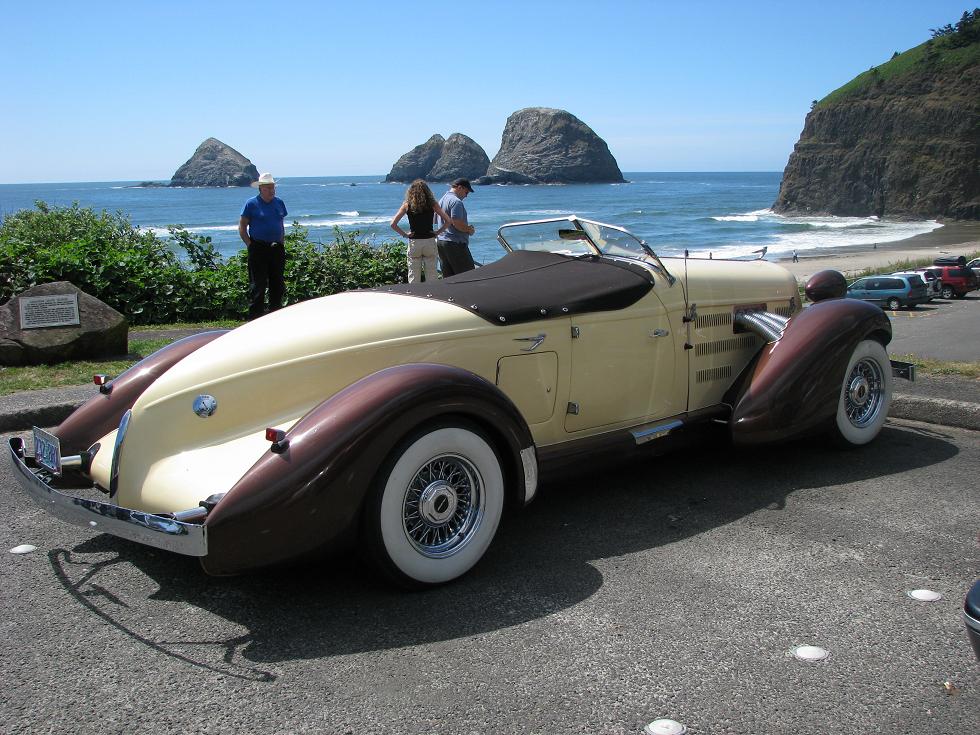
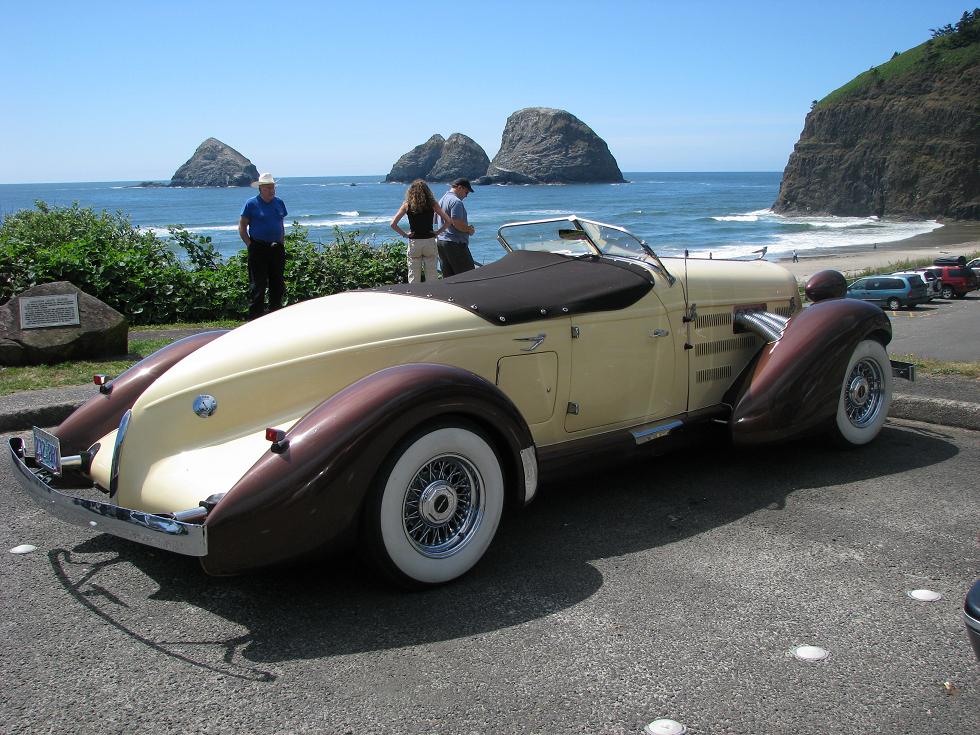
- 149KB (= 0.149MB) - This file is only 4% of the size of the original. It still looks good.
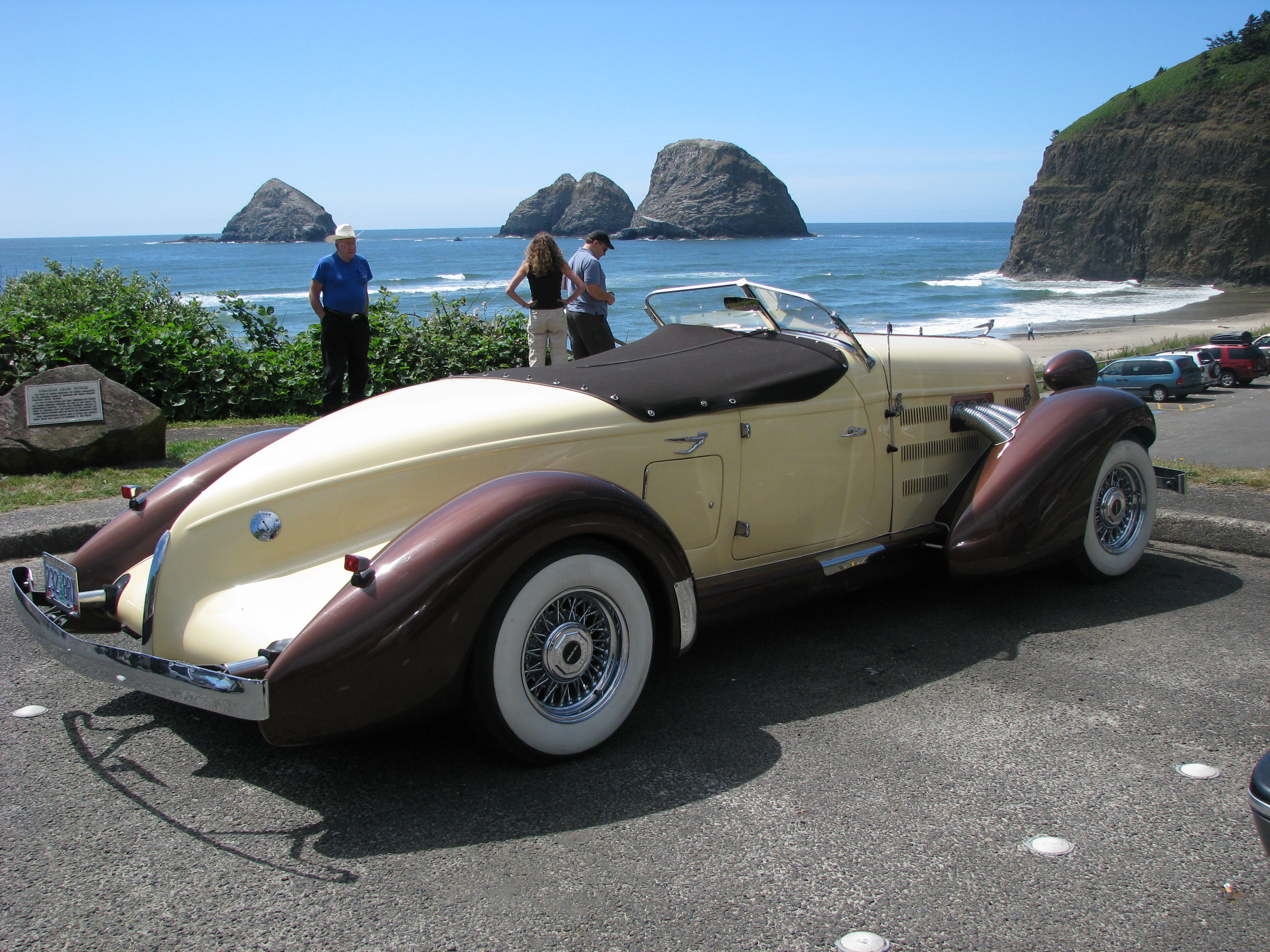
- 4177KB (= 4MB) - The following photo is the original photo. It is much too big to put in a PowerPoint Presentation
Note that the only reason that it fits your screen is that I have used the HTML to limit the photo to 75% of the width of your browser's window (width="75%").
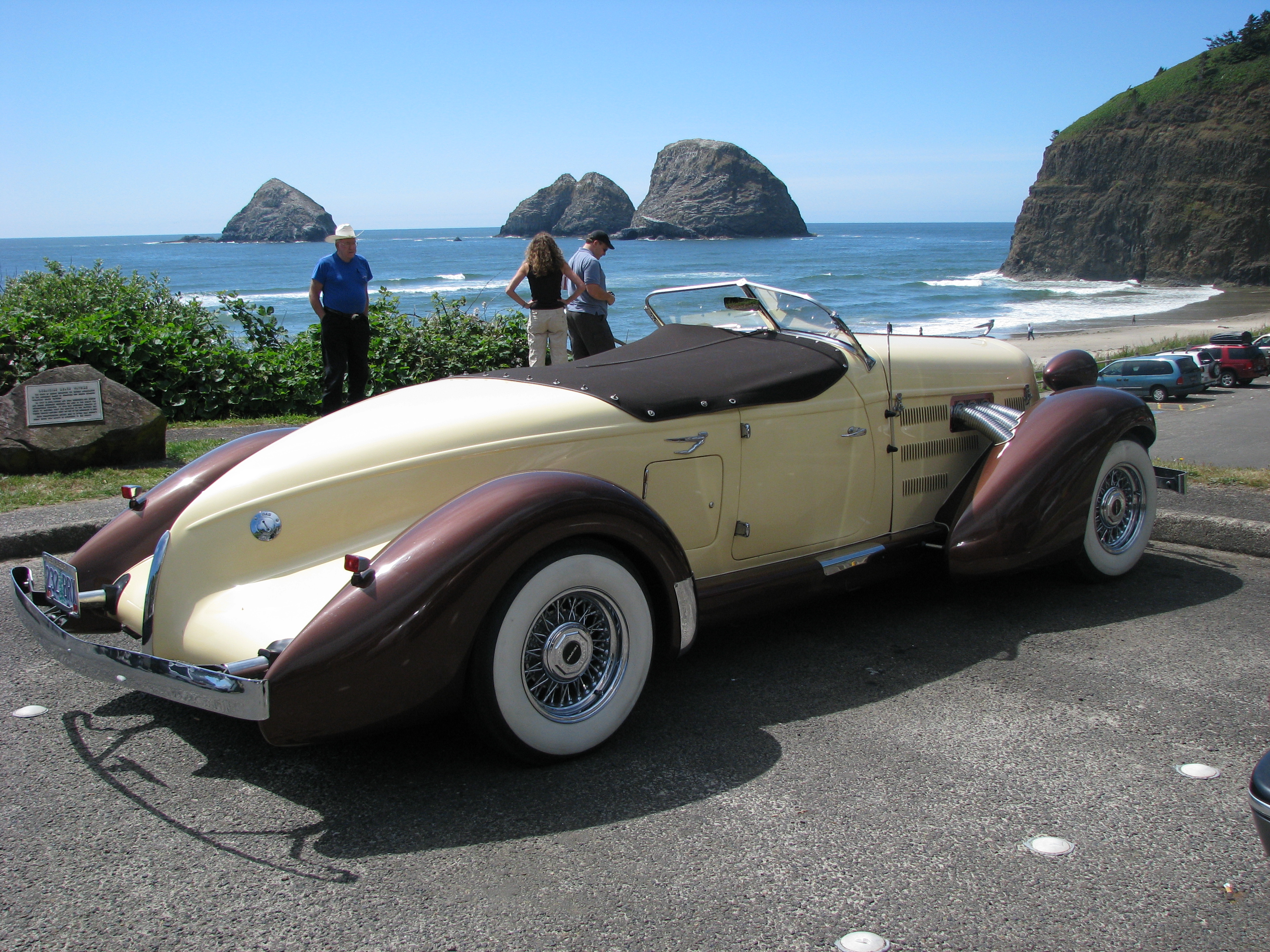
- 4177KB (= 4MB) - The following photo is the original photo. It is much too big to put in a PowerPoint Presentation
Note that the reason that it does NOT fit your screen is that I did not limit the width of the photo to the width of your browser's window.
Oceanside Beach, OR - 2007-07-03
-
-
- Prezi - An alternative to PowerPoint
- If you use Prezi instead of PowerPoint for your Project presentation, you must upload it as a single file to Lea/Omnivox. If this is impossible, you must make a PowerPoint file to upload to Lea/Omnivox. If nothing is uploaded to Lea/Omnivox for the PowerPoint, you will receive nothing (=0%).
- Starting with Prezi
- Using your Prezi
- Saving your Prezi
(in a PPT, as a compressed ZIP, or in a PDF)
- Prezi- Download Your Prezi - YouTube
- Go to http://Prezi.com/yourPrezi
- Click on your Prezi
- Select Download from the options bar
- Export to Portable prezi
- You will be prompted to click to download your file. (about 100MB)
- You will receive a zip file. Save it.
- Warning! This ZIP file will be too big to e-mail to most people. For instance, Hotmail has a limit of only about 45MB.
- Unzip your downloaded zip file
to create:
- Start Prezi.exe (PC) or the Prezi file (Mac) to load your portable Prezi
- powerpoint offline - YouTube
- Embed an on & offline prezi in powerpoint tutorial - YouTube
- Warnings
- See also: Flash from Adobe
[EOL] - See Flash ...
- You will need the Slidedynamic add-in to embed a Prezi into your PowerPoint. Price:£49.00
- You must download your "Portable prezi" if you want an offline prezi embedded in your PowerPoint.
- It may be necessary to Share or Publish your prezi or make it Public, otherwise nobody else will be able to see your prezi.
- Add the folder where your powerpoint is located as a trusted folder for Flash. See also: Flash from Adobe
[EOL] - See Flash ...
- Google search "convert .exe to .swf" and find e2s.exe on CNET downloads THEN convert your prezi .exe to an swf then follow these directions.
- This video is
slightly out of date. You will need the Slidedynamic add-in to embed a Prezi now.
- See also: Flash ...
- Embedded Flash object property "Movie"
- PowerPoint | Developer (tab) | More Controls |
Shockwave Flash Object | Properties | Movie |
http://prezi.com/bin/preziloader.swf?prezi_id=8uh9dptgr534332fd (for example)
- See also: Flash from Adobe
[EOL] - See Flash ...
- PDF with Prezi
Sharing your PowerPoint files.
- Don’t Post Everything Online - Students may lobby hard to receive a copy of your lecture notes or presentation slides before class, but resist the urge to make these easily accessible. By all means, provide a skeleton for them to fill in, but students should have an incentive to pay attention in class, and having a copy of detailed lecture notes in front of them will remove all incentive, sending them back to their phones for something a little more engaging. Give them purpose in the classroom.